Guide · Aug 08, 2026
What Is the Difference Between SSD and HDD?
Learn the primary differences between SSDs and HDDs, including speed, durability, power efficiency, and price per gigabyte to select the ideal drive for your system.
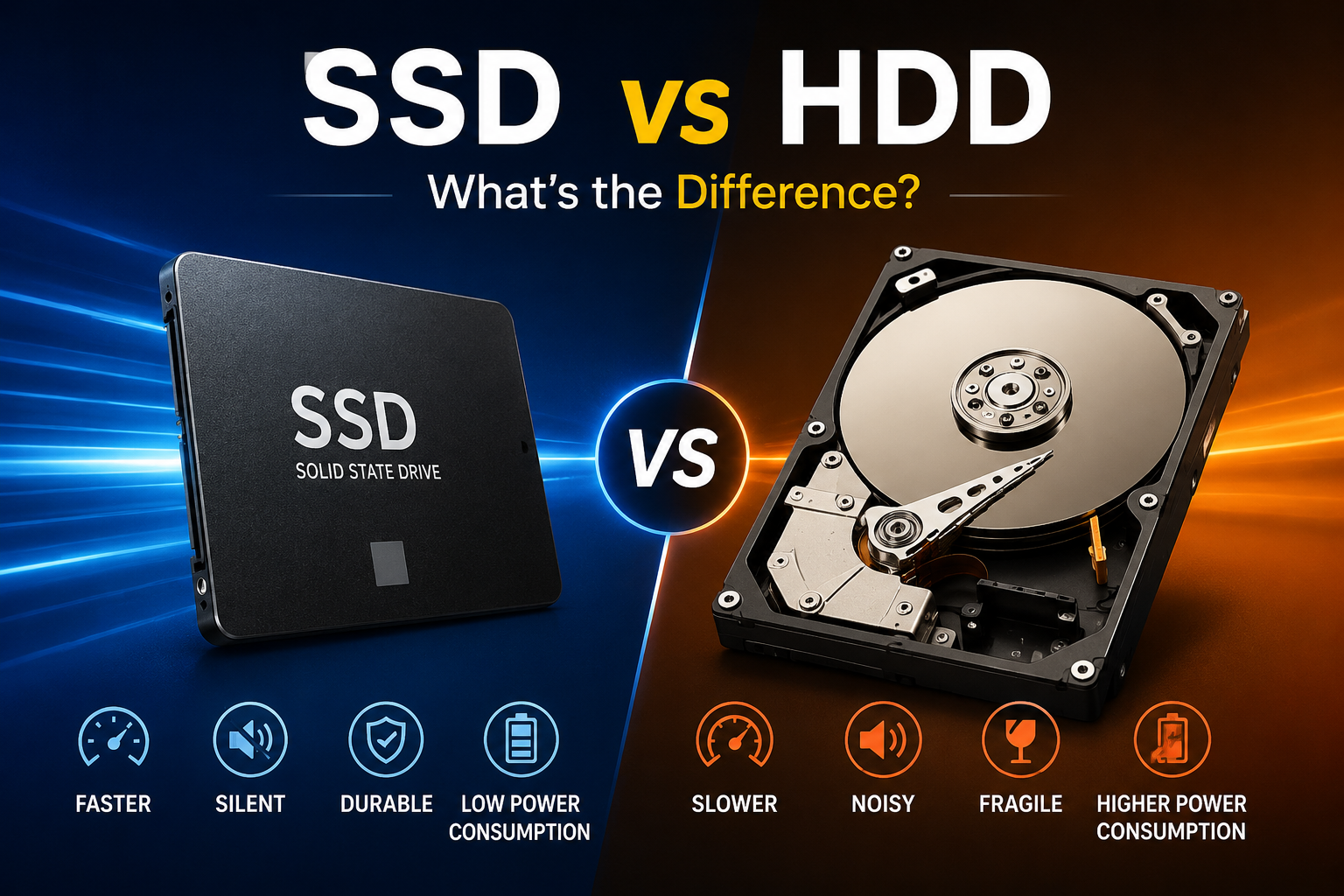
When upgrading or purchasing a computer, understanding the difference between SSD and HDD storage is essential. Both serve as permanent storage drives that retain your operating system, programs, and personal files even when turned off. However, the technology behind them is radically different, directly affecting your system's overall speed, power usage, and reliability.
A decade ago, standard hard disk drives (HDDs) dominated the consumer market. Today, solid-state drives (SSDs) have become the default standard for modern laptops and desktop computers. This guide explores how these two storage technologies work, how they perform under real-world conditions, and how to decide which option best matches your computing needs and budget.
Understanding Storage Basics: What Are SSDs and HDDs?
To grasp the fundamental differences, it helps to start with what each drive actually is. While both store digital data, their physical architecture and operational mechanics could not be more distinct.
What Is a Hard Disk Drive (HDD)?
A Hard Disk Drive (HDD) is a non-volatile data storage device that relies on legacy magnetic recording technology. Introduced by IBM in the 1950s, HDDs have evolved significantly in storage density, but their basic mechanical design remains the same. An HDD contains one or more rapidly spinning metallic platters coated with magnetic material, along with a read/write actuator arm that floats micro-inches above the platter surface.
What Is a Solid-State Drive (SSD)?
A Solid-State Drive (SSD) is a modern storage device that stores data on interconnected flash memory chips. Unlike an HDD, an SSD contains zero moving mechanical parts. It utilizes non-volatile NAND flash memory, which holds electrical charges to represent data blocks even when power is disconnected. Read and write operations are managed instantly by an onboard microcontroller.
How SSDs and HDDs Work: Mechanical vs. Flash Memory
The core mechanical difference dictates how quickly a computer can retrieve files, launch applications, and save work.
Spinning Platters and Magnetic Data in HDDs
In a standard HDD, platters spin at high speeds—typically 5,400 RPM (revolutions per minute) or 7,200 RPM in desktop models. When your computer requests a file, the read head must physically reposition itself over the correct track on the platter, wait for the platter to rotate to the exact sector, and read the magnetic charge. This physical movement introduces measurable delay, known as seek time and latency.
NAND Flash Chips and Controllers in SSDs
SSDs bypass mechanical movement entirely. Instead, the drive controller sends electrical signals directly to the grid of flash memory cells. Whether data is located at the beginning or the end of the drive, the controller accesses it instantly. This architecture eliminates rotational latency, yielding near-instantaneous access times.
Key Differences Between SSD and HDD: Speed and Performance
Speed is where the difference between SSD and HDD becomes most apparent to everyday users. Upgrading from a mechanical hard drive to a solid-state drive is often the single most effective way to revitalize an older computer.
Read and Write Speed Comparison
Sequential read and write speeds measure how fast a drive transfers large continuous files, such as videos or install packages:
- Standard 7200 RPM HDD: Typically delivers read/write speeds between 80 MB/s and 160 MB/s.
- SATA III SSD: Reaches speeds up to 550 MB/s, roughly 4 to 5 times faster than a standard HDD.
- NVMe PCIe 4.0/5.0 SSD: Advanced M.2 SSDs achieve speeds ranging from 3,500 MB/s to over 10,000 MB/s.
Boot Times and Application Load Times
Because SSDs have microsecond access times compared to the milliseconds required by HDDs, boot times are reduced dramatically. A computer running Windows or macOS on a modern SSD can boot up in 10 to 15 seconds, compared to 45 seconds to several minutes on a traditional HDD. Games, creative software, and browser windows also launch almost instantly on an SSD.
Durability, Lifespan, and Noise Levels
Physical resilience and longevity vary substantially between mechanical drives and flash media, making environment a key factor in your decision.
Physical Shock Resistance
Because HDDs rely on read heads hovering extremely close to spinning platters, a sudden drop, bump, or vibration while operating can cause a head crash, damaging the platter and resulting in permanent data loss. SSDs have no moving parts, making them highly resistant to accidental drops, bumps, and physical vibrations, which is ideal for laptops and portable drives.
Operational Noise and Power Consumption
HDDs emit audible mechanical clicks and whirring sounds during heavy read/write tasks. They also draw more electricity to power their internal motors, producing moderate heat. SSDs operate completely silently, generate less heat, and consume less power, which helps extend laptop battery life.
Storage Capacity, Cost, and Value Comparison
When examining economic factors and raw capacity, traditional hard drives continue to hold a specific advantage for bulk storage requirements.
Price per Gigabyte
HDDs remain significantly cheaper per gigabyte than high-capacity SSDs. For massive datasets—such as multi-terabyte media archives, surveillance footage, or network backups—HDDs offer the most economical option available.
Maximum Available Capacities
Commercial consumer HDDs easily reach capacities of 18TB to 24TB at reasonable consumer price points. While large consumer SSDs exist (such as 4TB or 8TB models), their price increases exponentially compared to equivalent mechanical hard drives.
Form Factors and Interface Standards
Physical sizing and connectivity standards differ depending on the technology and motherboard compatibility.
2.5-Inch and 3.5-Inch Drives
Traditional desktop HDDs usually come in a 3.5-inch form factor, requiring external power connectors alongside SATA data cables. Laptops and older SATA SSDs typically use a smaller 2.5-inch enclosure that relies on standard SATA interfaces.
M.2 NVMe Form Factor
Modern SSDs frequently adopt the compact M.2 form factor, which resembles a small stick of gum. These drives plug directly into the motherboard via PCIe slots, eliminating cables and taking full advantage of fast Non-Volatile Memory Express (NVMe) protocol speeds.
Summary of the Difference Between SSD and HDD Use Cases
Choosing between these two technologies comes down to how you plan to use your computer and what performance bottlenecks you want to avoid.
When You Should Choose an SSD
An SSD is the clear choice for your primary boot drive. Choose an SSD if you:
- Need quick OS startup times and snappy desktop responsiveness.
- Play modern video games requiring fast asset streaming.
- Edit video, photos, or audio files professionally.
- Require a lightweight, quiet, drop-resistant laptop drive.
When an HDD Still Makes Sense
An HDD remains a practical secondary storage solution. Choose an HDD if you:
- Need terabytes of archive space on a tight budget.
- Set up a Network Attached Storage (NAS) system or home media server.
- Store cold backups, documents, and video files that rarely require high transfer speeds.
Frequently Asked Questions
What is the main difference between SSD and HDD?
The main difference is that an SSD uses flash memory chips with no moving parts to store data electronically, while an HDD uses spinning mechanical magnetic platters and a moving arm to read and write data. This makes SSDs significantly faster, quieter, and more durable than HDDs.
Is an SSD better than an HDD for gaming?
Yes, an SSD is significantly better for gaming. While an SSD won't directly boost your in-game frame rates (FPS), it reduces game loading screens from minutes to seconds and eliminates texture popping in open-world games.
Do SSDs last longer than HDDs?
In general everyday use, SSDs are often more reliable because they lack fragile mechanical components that wear out or break from physical drops. However, SSD flash cells do have a finite limit of write cycles (measured in TBW - Terabytes Written), whereas HDDs can write indefinitely until mechanical failure occurs.
Can you use both an SSD and an HDD in the same computer?
Yes, combining both is a popular dual-drive setup. Many desktop users install the operating system and key programs on a fast SSD (e.g., 500GB or 1TB) for speed, while using a larger HDD (e.g., 2TB to 8TB) for low-cost bulk storage.
Why are HDDs cheaper than SSDs?
HDDs use mature, well-established manufacturing processes for magnetic storage that yield high capacities at low costs. Flash memory technology used in SSDs requires complex semiconductor fabrication plants, keeping high-capacity flash memory chips more expensive per gigabyte.
Does replacing an HDD with an SSD make an old computer faster?
Yes, swapping a legacy boot HDD for an SSD is one of the most effective hardware upgrades for an aging laptop or desktop, drastically shortening boot times and making system navigation feel brand new.
Conclusion
Understanding the fundamental difference between SSD and HDD drives clarifies why modern computing relies so heavily on flash memory. SSDs deliver unmatched speed, silent operation, and physical resilience, making them the superior choice for primary boot drives and daily tasks. Meanwhile, traditional HDDs continue to serve a critical role as affordable, high-capacity bulk storage for heavy archival needs. For optimal speed and cost efficiency, many users adopt a hybrid strategy: running their operating system on a swift SSD while archiving large data files on a secondary HDD.
Related Reading
- NVMe vs SATA performance — Comparison of NVMe and SATA SSD interfaces
- how to back up computer data — Data backup strategies for internal and external drives
- cloning HDD to SSD guide — Step-by-step guide on migrating operating system from HDD to SSD
- understanding NAND flash types — Detailed guide on SLC, MLC, TLC, and QLC flash memory