Guide · Aug 12, 2026
Why Does My Computer Fan Get So Loud?
Discover why your computer fan gets so loud—from heavy background processes and trapped dust to failing fan bearings—and learn how to easily restore quiet operation.
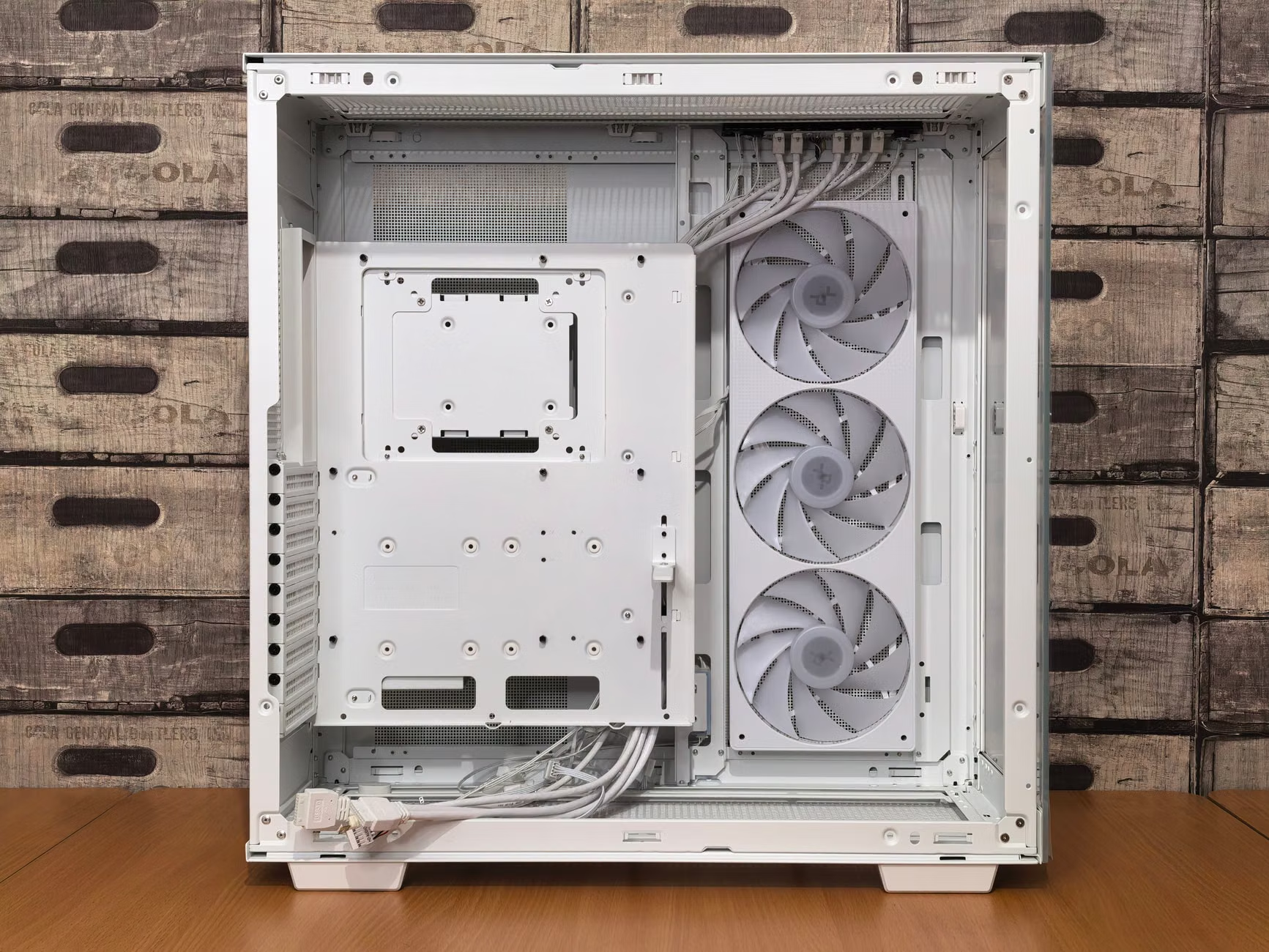
If your computer suddenly sounds like a jet engine during routine tasks, you are probably asking yourself: why does my computer fan get so loud? A noisy cooling fan is one of the most common complaints among desktop and laptop users alike. While fan noise is a normal byproduct of thermal management, sudden spikes in volume often point to underlying software or hardware issues.
Computer fans are engineered to speed up when internal temperatures rise, protecting critical hardware like the CPU and GPU from severe damage. In this guide, we will break down the exact reasons why your computer fan gets so loud, how to diagnose the culprit, and what actionable steps you can take to make your computer run cool and quiet again.
Understanding How Computer Cooling Works
To understand why your computer fan becomes noisy, it is essential to first understand how system thermals function. Modern computers rely on active cooling systems to manage internal temperatures dynamically.
Thermal Sensors and Fan Speed Curves
Motherboards are fitted with thermal sensors near critical processing cores. As these cores perform work, they generate heat. Built-in software monitors temperature thresholds and adjusts fan Pulse Width Modulation (PWM) signals, causing fan blades to spin faster to move hot air away from the hardware.
Passive vs. Active Heat Dissipation
While passive heat sinks absorb thermal energy silently, active cooling fans engage when heat exceeds passive threshold limits. Higher processor workloads increase thermal output, triggering rapid fan rotation and noticeable noise.
High System Load: Why Does My Computer Fan Get So Loud During Use?
Heavy resource usage is the most frequent trigger for accelerating fans. When system demand spikes, power consumption increases, generating elevated thermal energy that fans must immediately clear out.
Resource-Intensive Software and Gaming
Running demanding applications like 3D gaming, video rendering, or CAD design pushes your CPU and graphics card to higher clock speeds. This intense calculations workload produces high temperatures, prompting cooling fans to run at maximum RPM.
Background Processes and Unwanted Software
Even when you are not actively using heavy apps, hidden background processes like operating system updates, cloud syncing, or hidden malware (such as crypto-miners) can consume excessive system resources and cause loud fan activity.
Physical Obstructions: Dust Build-Up and Restricted Airflow
Environmental factors heavily influence thermal dissipation efficiency. When physical pathways are restricted, internal temperatures rise quickly even during minimal usage.
Dust Layers on Fan Blades and Heat Sinks
Over time, airborne dust, pet hair, and debris accumulate on intake vents, heat sink fins, and fan blades. Dust acts as an insulating blanket, trapping heat inside component radiators and forcing fans to spin harder and louder to compensate.
Blocked Air Vents and Poor Placement
Placing a laptop on a soft surface like a bed or carpet blocks intake vents located underneath. Similarly, pushing a desktop tower tight against a wall starves exhaust ports, recycling hot air inside the case chassis.
Hardware Aging: Failing Bearings and Dry Thermal Paste
Not all loud fan noises are caused by high airflow. Hardware wear and mechanical friction can produce distracting, unpleasant sounds over time.
Worn-Out Fan Bearings
Computer fans use sleeve, ball, or fluid dynamic bearings to spin smoothly. As lubricant degrades over years of service, bearings wear down, producing high-pitched whines, clicking, or rattling sounds rather than smooth air motion.
Degraded Thermal Compound
Thermal paste resides between the processor and its heat sink to facilitate efficient heat transfer. Over 3 to 5 years, this paste dries out and cracks, creating thermal air gaps that force fans to remain locked at 100% speed.
How to Diagnose Why Your Computer Fan Is So Loud
Before trying to fix fan noise, identifying whether the cause is software-based or physical will save you time and unnecessary maintenance.
Inspecting System Resource Monitors
Open Windows Task Manager (press Ctrl + Shift + Esc) or macOS Activity Monitor. Sort active processes by CPU usage to see if a rogue background application is using 20% or more of your processor power persistently.
Checking Internal Hardware Temperatures
Utilize free monitoring utilities like HWMonitor or Core Temp to view component temperatures. Idle temps above 50°C (122°F) or load temperatures nearing 90°C (194°F) indicate thermal performance degradation requiring intervention.
Actionable Steps to Fix and Quiet a Loud Computer Fan
Resolving persistent fan noise involves basic maintenance and software optimization adjustments.
Safely Cleaning Vents and Internal Fans
Power down your device, disconnect cables, and use canned compressed air in short bursts to dislodge dust from intake grills, fan blades, and radiators. Always secure fan blades in place while blowing air to prevent bearing over-rotation.
Adjusting Power Profiles and Fan Curves
Change your OS power settings from high-performance to balanced mode to reduce idle voltages. Alternatively, use motherboard BIOS tools or GPU software utilities to set custom fan curves that smooth out aggressive speed ramps.
Frequently Asked Questions
Is a loud computer fan a sign of hardware damage?
Not necessarily. In most cases, a loud fan simply means the cooling system is doing its job to handle elevated system temperatures. However, grinding, clicking, or rattling noises usually indicate mechanical bearing failure.
Why does my computer fan get so loud when I open a web browser?
Modern web browsers rely heavily on hardware acceleration to display media-rich pages, video streams, and complex scripts. Opening multiple tabs can trigger temporary CPU utilization spikes, causing fan speeds to rise.
Can I safely stop my computer fan from spinning?
No. Disabling cooling fans while high-performance hardware is active can lead to severe thermal throttling, system instability, or permanent hardware damage due to extreme heat.
How often should I clean dust out of my computer fan?
It is recommended to clear out internal dust every 3 to 6 months. Homes with pets, carpeting, or high dust levels may require more frequent maintenance.
Will re-applying thermal paste reduce fan noise?
Yes. If your thermal paste has dried out, replacing it restores direct thermal contact between the heat sink and processor, drastically dropping CPU temperatures and reducing overall fan RPM.
Why does my laptop fan run loud when plugged into power?
When plugged in, laptops often default to high-performance power plans, allowing the CPU and GPU to draw more wattage and run at max boost frequencies, generating extra heat.
Conclusion
So, why does my computer fan get so loud? In short, high fan noise is your system's emergency response to elevated internal temperatures brought on by heavy software loads, trapped dust, bad airflow, or worn hardware. By checking system processes, routinely blowing out dust, and maintaining proper ventilation around your computer, you can keep heat levels low and enjoy a fast, quiet system.
Related Reading
- how to safely clean PC dust — PC Dust Cleaning Maintenance
- best CPU temperature monitor tools — Hardware Monitoring Diagnostics
- how to reapply thermal paste — Thermal Paste Application Guide
- fixing high CPU usage background processes — Windows OS Performance Troubleshooting