Guide · Aug 08, 2026
Why Does My Laptop Get So Hot?
If you are asking yourself why does my laptop get so hot, the answer usually stems from dust accumulation, blocked air vents, high CPU background usage, or aging thermal paste. Learn how to diagnose high temperatures and fix laptop overheating.
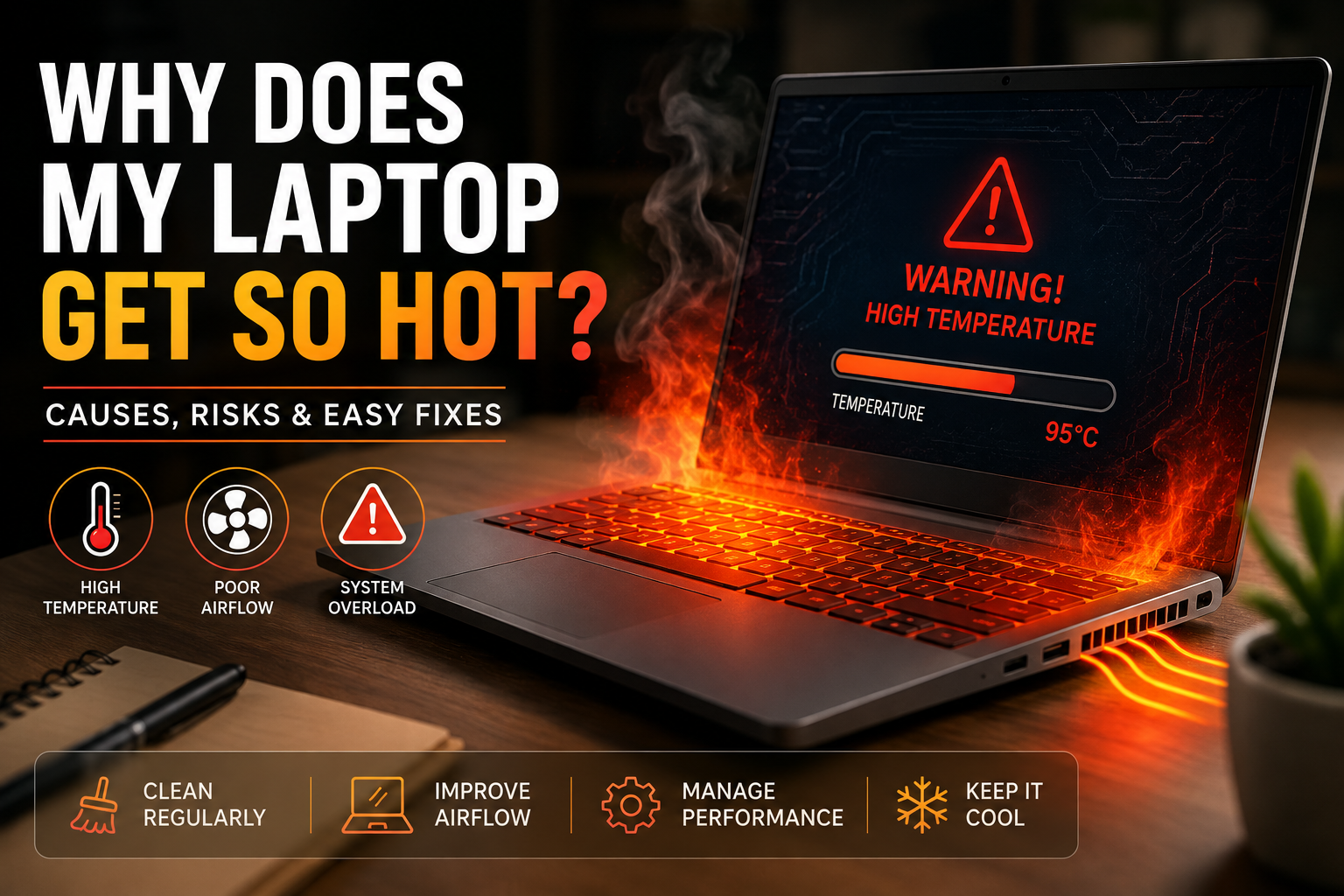
It is a frustratingly common scenario: you are working on a project, streaming videos, or playing a game when suddenly your laptop turns scorching hot to the touch. The internal fans start roaring like a jet engine, and your system performance drops to a crawl. If you find yourself asking, "why does my laptop get so hot?" you are far from alone.
Laptops pack immense processing power into extremely thin frames, making heat dissipation a constant engineering challenge. While some warmth is completely normal during demanding tasks, excessive heat can cause performance throttling, system crashes, and even long-term hardware damage. In this guide, we will break down the exact underlying causes of laptop overheating, explain how internal thermal management works, and provide clear, actionable steps to restore your laptop to safe working temperatures.
Understanding Thermal Management in Modern Laptops
To understand why laptops overheat, it helps to understand how modern computer components generate and dissipate thermal energy within a cramped chassis.
How Laptop Cooling Systems Work
Inside your laptop, energy flows through the Central Processing Unit (CPU) and Graphics Processing Unit (GPU). As these microchips calculate data, electrical resistance generates thermal energy. To dissipate this heat, metal heat pipes filled with vapor draw heat away from the chips toward small metal fins known as heatsinks. An internal fan then pulls cool air from intake vents, blows it across the heatsink fins, and pushes the hot air out through exhaust ports.
What Is Thermal Throttling?
When internal temperatures cross safety thresholds—typically around 90°C to 100°C (194°F to 212°F)—the system engages a protection mechanism called thermal throttling. The CPU or GPU automatically reduces its clock speed to decrease heat output. This prevents physical destruction of the silicon, but it manifests on your end as severe lag, freezing, or stuttering software.
Primary Hardware Causes: Why Does My Laptop Get So Hot?
In many cases, physical issues inside or around the laptop housing disrupt airflow and cause thermal energy to build up trapped inside the chassis.
Dust Accumulation in Fans and Vents
Over time, the cooling fan draws in ambient dust, pet hair, and lint alongside fresh air. This debris collects along the fan blades and forms a dense blanket over the heatsink fins. Once air vents become clogged, heat cannot escape, resulting in rapid temperature spikes during basic tasks.
Dried-Out Thermal Paste
Thermal paste is a conductive compound applied between the processor chips and heat pipes to fill microscopic air gaps. Over 2 to 4 years, this paste dries out, cracks, and loses its thermal conductivity. When heat cannot transfer efficiently from the chip to the heat pipe, temperatures skyrocket in seconds.
Failing or Worn-Out Cooling Fans
Laptop fans contain small bearings that degrade over time due to constant friction and high rotation speeds. A failing fan may rattle, make grinding sounds, spin at lower RPMs than necessary, or stop working entirely. Without active airflow, thermal energy stays trapped in the laptop body.
Software Factors: Why Does My Laptop Get So Hot Under Normal Use?
Physical issues are not always to blame. Software demands can place an extraordinary workload on your processor, causing high temperatures even on clean systems.
Resource-Intensive Background Tasks
Unseen applications running in the background can force your processor to run at maximum power constantly. Browser extensions, cloud synchronization services, automatic update installers, and hidden startup apps prevent the CPU from entering energy-saving idle states.
Malware and Malicious Scripts
Certain types of malware, particularly browser-based cryptominers or illicit background scripts, hijack system resources to mine cryptocurrency or perform background computations. This keeps CPU and GPU usage pinned near 100%, generating continuous extreme heat.
Outdated Drivers and Operating System Bugs
Software glitches or outdated chipset drivers can disrupt power state management in Windows or macOS. If system power drivers fail to send sleep signals to inactive hardware controllers, power consumption—and consequently heat output—remains high.
Troubleshooting Guide: Why Does My Laptop Get So Hot and How to Fix It?
Addressing overheating requires a methodical approach that addresses physical placement, dust cleanup, and software optimization.
Fix Physical Placement and Surface Airflow
Never place an active laptop on soft materials like beds, blankets, pillows, or lap cushions. These surfaces sink into the bottom housing, blocking intake grilles and trapping hot air. Always place your device on a hard, flat surface like a wooden or glass desk, or use a raised laptop stand to maximize passive ventilation under the bottom intake vents.
Clean the Cooling Assembly
Use a can of compressed air to clear out dust accumulation. Turn off the laptop, unplug power cables, and use short bursts of compressed air into the exhaust and intake vents. For a thorough cleaning, unscrew the bottom panel and hold the fan blades stationary while blowing away trapped dust clumps.
Manage High-Resource Processes
Open Task Manager (Windows: Ctrl + Shift + Esc) or Activity Monitor (macOS: Cmd + Space, type Activity Monitor). Sort processes by CPU usage to identify applications consuming disproportionate resources. Force-close unneeded programs and disable unnecessary startup applications to lighten processing demands.
Long-Term Prevention and Maintenance Best Practices
Taking proactive care of your laptop prevents recurring thermal issues and extends the overall lifespan of internal silicon components.
Optimize System Power Profiles
Adjust your operating system settings to prioritize power efficiency over raw performance when performing daily office tasks. Lowering maximum CPU utilization to 90-95% in advanced power management settings can drastically cut heat creation without noticeably impairing real-world speed.
Maintain Regular Cleaning Schedules
Perform an external compressed-air cleaning every 3 to 6 months depending on your home environment (especially if you have household pets). Re-applying fresh thermal paste every 3 years can keep high-end processors running up to 15°C cooler under heavy workloads.
Frequently Asked Questions
Is it normal for a laptop to get hot while charging?
Yes, moderate warmth during charging is normal. Lithium-ion batteries generate heat as they absorb power, and rapid charging circuits produce extra thermal energy. However, if the laptop becomes uncomfortable to hold or shuts down while charging, check for background tasks or battery hardware degradation.
Can excessive heat permanently damage my laptop?
Yes. Modern processors feature built-in safety cutoffs to prevent immediate melting, but sustained high temperatures over long periods degrade electronic components, shorten battery lifespan, dry out thermal compounds, and damage delicate motherboard power delivery chips.
What is considered a dangerous temperature for a laptop CPU?
Idle CPU temperatures should sit between 35°C and 50°C (95°F–122°F). Under heavy loads like gaming or video rendering, temperatures between 70°C and 85°C (158°F–185°F) are common. Temperatures consistently staying above 90°C (194°F) indicate thermal issues that require attention.
Do laptop cooling pads actually help reduce internal heat?
Laptop cooling pads with built-in external fans can drop temperatures by 3°C to 10°C, provided your laptop has intake vents on its underside. While helpful, cooling pads are a supplementary tool and cannot fix clogged internal vents or dried-out thermal paste.
Why does my laptop get hot even when I am doing nothing?
If your laptop warms up while idle, background system updates, indexing tasks, hidden malware scripts, or clogged cooling vents are usually responsible. Check Task Manager or Activity Monitor to find hidden applications running in the background.
Conclusion
When asking "why does my laptop get so hot?" remember that heat is an inevitable byproduct of mobile computing power. However, extreme heat is almost always traceable to reduced ventilation, dust accumulation, demanding software loads, or aging thermal paste. By maintaining clear airflow, periodically clearing out dust, adjusting power management profiles, and monitoring process usage, you can keep your laptop running cool, quiet, and reliable for years to come.
Related Reading
- cleaning laptop fans safely — Step-by-step instructions for opening a laptop chassis and removing dust.
- monitoring CPU temperatures — Guide to software tools for tracking real-time internal computer temperatures.
- fixing high CPU usage in Task Manager — Tutorial on optimizing background Windows processes to lower system load.
- how to reapply thermal paste — Detailed guide on applying fresh thermal compound to laptop processors.