Guide · Aug 14, 2026
Why Does My Phone Screen Flicker? Common Causes and How to Fix It
Wondering why your phone screen flickers? Learn the common software bugs, hardware issues, display settings, and effective fixes to solve the problem quickly.
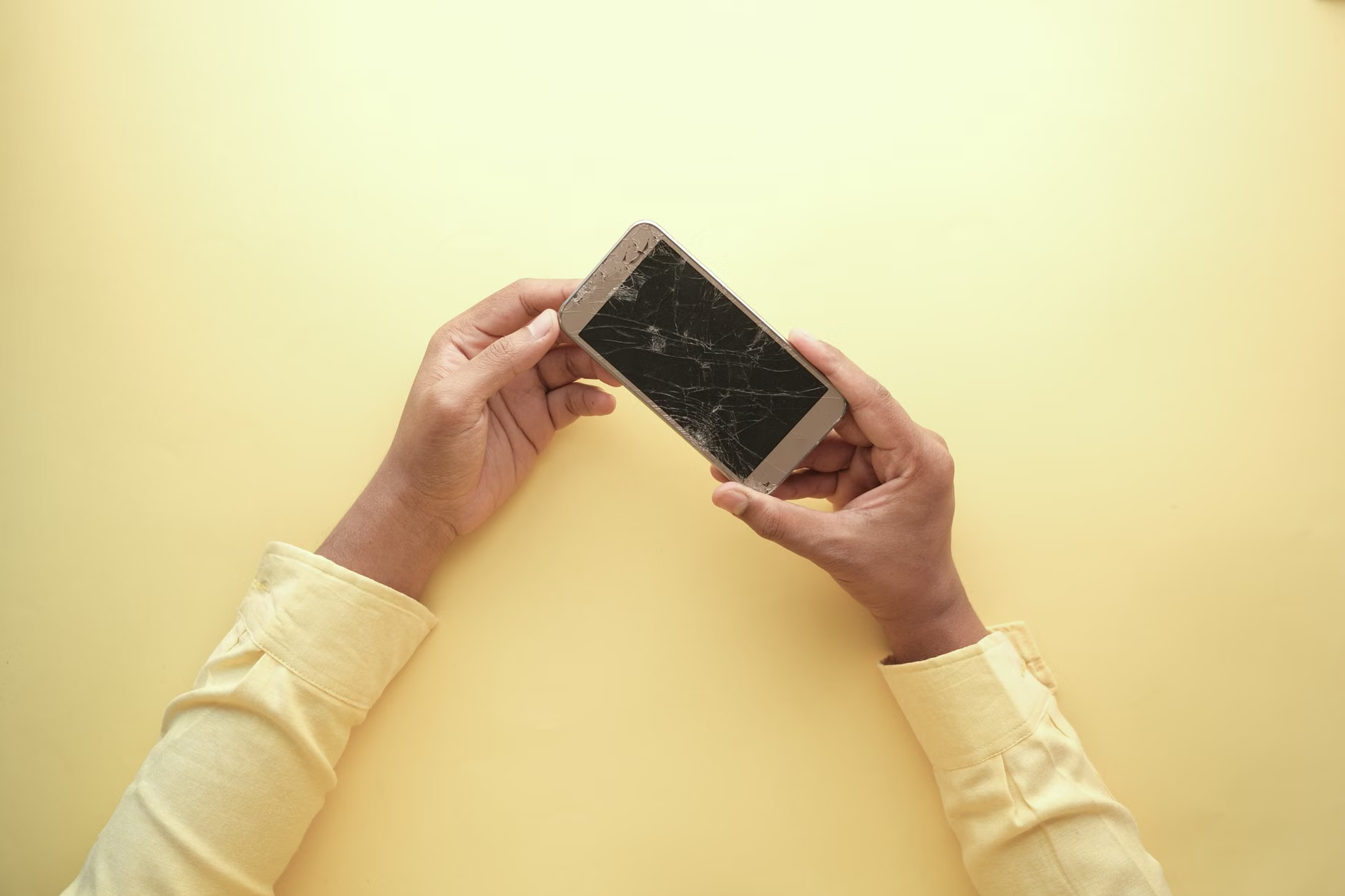
Few things are as disruptive as a flickering smartphone display. Whether it manifests as subtle micro-stutters, sudden brightness jumps, or rapid flashing, a screen glitch can make reading, typing, and navigating virtually impossible. If you are asking yourself, why does my phone screen flicker, the issue generally stems from either software configuration errors or underlying physical hardware damage.
Understanding the exact trigger is crucial for applying the correct fix without spending unnecessary money on repairs. In this comprehensive guide, we will break down the primary culprits behind display instability across both Android and iOS devices and provide actionable steps to restore your display to normal operation.
Primary Reasons Why Your Phone Screen Flickers
When troubleshooting a flickering screen, the problem can typically be isolated into two distinct categories: software malfunctions or physical hardware faults. Identifying which category your phone falls into will save you significant time.
Software Glitches and Incompatible Apps
Software-induced flickering frequently happens after a major operating system update, corrupted app installation, or background cache failure. Incompatible third-party apps—particularly custom launchers, display filters, or screen recorders—can clash with the phone's rendering engine, leading to intermittent visual stuttering.
Physical Damage and Loose Display Connectors
Even if the outer glass shows no visible cracks, an accidental drop can loosen the internal digitizer or flex cable connecting the screen to the motherboard. If the phone screen flickers primarily when you tap, hold, or apply light pressure to specific areas of the chassis, an internal physical connection issue is likely the root cause.
Display Technology Differences: OLED vs. LCD Flickering
The specific type of panel your smartphone uses plays a major role in how and why visual flickering manifests.
Pulse-Width Modulation (PWM) on OLED Screens
Modern flagship smartphones widely utilize AMOLED or OLED panels. To regulate brightness, these screens often use a technique called Pulse-Width Modulation (PWM), which rapidly cycles the display on and off at varying frequencies. At low brightness levels, this cycle slows down, causing perceptible flickering or eye strain for sensitive users.
Backlight Malfunctions in LCD Panels
Unlike OLED screens where each pixel emits its own light, traditional LCD panels rely on a dedicated LED backlight. If the backlight controller degrades, receives inconsistent voltage, or suffers component failure, the entire panel may rapidly flicker or dim unpredictably.
Display Settings That Trigger Phone Screen Flickering
Before assuming your phone has a broken panel, evaluate your active display settings. Automated features often create visual artifacts that mimic hardware failure.
Adaptive Brightness and Ambient Sensor Faults
Features like Adaptive Brightness or Auto-Brightness rely on an ambient light sensor near the top speaker. If the sensor is obstructed by dirt, a thick screen protector, or is miscalibrated, it may rapidly shift brightness up and down as it struggles to read room lighting.
Variable Refresh Rate (VRR) Glitches
High refresh rate displays (90Hz, 120Hz, or dynamic LTPO panels) dynamically scale their refresh rate to conserve battery. A software bug in the graphics rendering pipeline can cause momentary visual stuttering or brightness fluctuations when transitioning between high and low refresh rates.
Step-by-Step Software Fixes to Stop Screen Flickering
If you suspect a software bug is the reason why your phone screen flickers, execute these proven troubleshooting steps in order:
- Perform a Hard Restart: Power cycling clears volatile RAM and terminates rogue background rendering loops.
- Disable Auto-Brightness: Turn off adaptive brightness in your display settings and manually set the slider to 50% or higher to test stability.
- Test in Safe Mode: Booting into Safe Mode (on Android) disables all third-party applications, letting you see if an installed app is the culprit.
- Wipe the System Cache Partition: Clearing cached system files removes corrupted temporary data that may interfere with display drivers.
Updating the Operating System
Manufacturers frequently deploy firmware patches to resolve known graphical rendering bugs. Navigate to your device settings and verify whether an official software update is waiting to be installed.
Performing a Factory Reset as a Last Resort
If the flickering started after a corrupted system update or persistent bug, a full factory data reset restores the device to its pristine out-of-the-box state. Ensure you create a comprehensive backup of all personal files before proceeding.
Developer Options Fixes for Android Users
Android devices offer granular graphics controls within Developer Options that can immediately remedy specific rendering conflicts.
Disabling Hardware Overlays
Enabling the Disable HW Overlays setting forces the device to utilize the GPU exclusively for screen compositing rather than splitting tasks between the CPU and hardware layers. This simple toggle frequently eliminates interface stuttering.
Verifying Strict Mode and Surface Updates
Ensure settings like Show Surface Updates and Strict Mode Enabled are switched off. When active, these diagnostic tools deliberately flash the screen whenever background threads perform long operations.
When Hardware Damage Requires Professional Repair
If software troubleshooting does not resolve the issue, hardware failure is almost certainly the underlying problem.
Liquid Ingress and Internal Corrosion
Water resistance seals degrade over time. Moisture entering the chassis can short-circuit the display power circuitry or corrode fragile pin connectors, causing irregular flickering and colored horizontal or vertical lines.
Battery Swelling and Panel Pressure
An aging or defective lithium-ion battery can swell, exerting upward pressure against the back of the display assembly. This localized force distorts pixel layers and causes flickering, touch ghosting, or screen lifting along the frame.
Frequently Asked Questions
Can a dying battery cause a phone screen to flicker?
Yes. When a phone battery degrades significantly, it may struggle to deliver consistent voltage to the motherboard and display backlight during peak power demands, leading to visible flickering or unexpected shutdowns.
Does a cracked screen protector cause screen flickering?
While a cracked protector does not typically cause the display panel itself to flicker, air pockets or damage over the ambient light sensor can confuse auto-brightness features, causing rapid and erratic brightness fluctuations.
Why does my phone screen flicker only at low brightness?
On OLED and AMOLED devices, low-brightness flickering is usually caused by Pulse-Width Modulation (PWM). Many modern phones lower brightness by turning the display off and on quickly, which can become visible to the human eye at lower levels.
How do I know if my flickering screen is a hardware or software issue?
Take a screenshot while the screen is actively flickering. If the flickering or visual artifact appears inside the saved image when viewed on another device, it is a software bug. If the screenshot looks perfectly normal, it is a hardware or physical display failure.
Can water damage cause delayed screen flickering?
Yes. Corrosion from water exposure often takes days or weeks to form across the internal display connector pins, resulting in delayed flickering, touch unresponsiveness, or total screen blackouts long after the initial spill.
Is screen flickering covered under manufacturer warranty?
Screen flickering caused by manufacturing defects, software glitches, or component failure is covered under standard warranties. However, flickering resulting from physical drops, impacts, or liquid contact is generally excluded.
Conclusion
Discovering why your phone screen flickers requires a methodical process of elimination. Start with simple adjustments like disabling adaptive brightness, restarting your device, and checking for system updates. If the flickering persists through a factory reset or only happens when pressing the device frame, schedule an inspection with an authorized repair technician to replace the display assembly or reseat loose internal cables.
Related Reading
- fix phone touch screen not working — Troubleshooting unresponsive or erratic smartphone touchscreens
- signs of a swollen smartphone battery — Identifying hazardous swollen phone batteries and internal damage
- how to clear Android system cache — Step-by-step guide to wiping cache partitions on mobile devices
- what to do for a water damaged phone — Emergency recovery steps for smartphones exposed to liquids