Guide · Aug 10, 2026
Why Does My Wi-Fi Keep Disconnecting?
Discover the main causes behind frequent Wi-Fi drops and learn practical troubleshooting steps to stabilize your home wireless network.
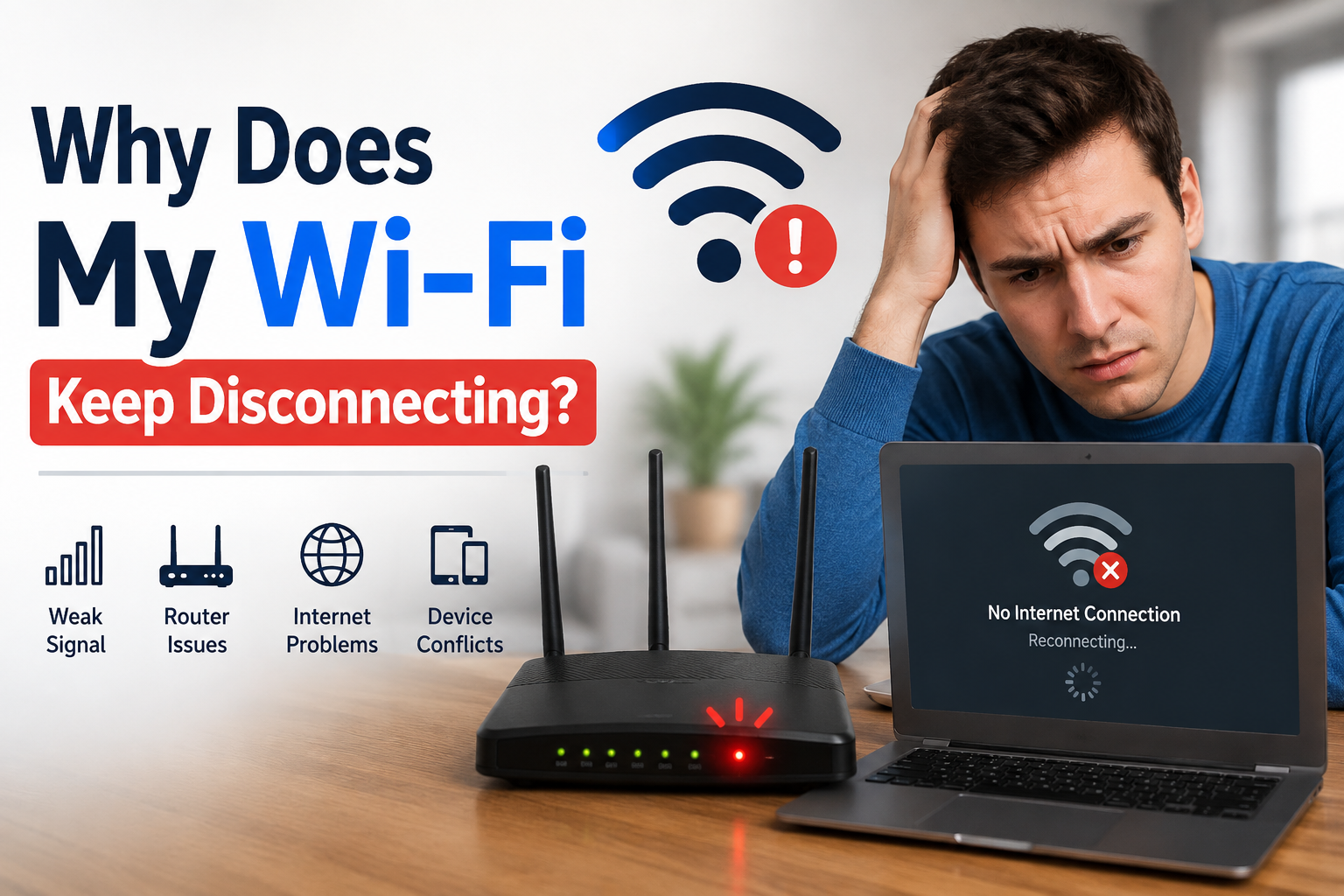
Few digital frustrations match the annoyance of an unstable internet connection. Whether you are in the middle of a video conference, streaming your favorite show, or playing an online game, having your Wi-Fi keep disconnecting disrupts productivity and entertainment. Understanding the root cause of these drops is the first step toward building a resilient home network.
Intermittent wireless dropouts rarely stem from a single broken piece of equipment. Instead, they usually result from a combination of signal interference, outdated drivers, network overload, or router hardware fatigue. In this guide, we will break down the precise technical reasons why your Wi-Fi keeps disconnecting and provide step-by-step solutions to fix the issue permanently.
Understanding Why Your Wi-Fi Keep Disconnecting Issues Happen
Wireless networks rely on radio frequency signals transmitted through the air. Because radio waves are subject to physical environmental factors and digital capacity limits, several underlying dynamics can cause your connection to drop suddenly.
Signal Distance and Physical Barriers
As you move further away from your wireless router, signal strength degrades rapidly. Dense construction materials—such as concrete, brick, plaster, and metal framing—attenuate radio signals much more than drywall or wood. If your device sits on the threshold of usable coverage, minor changes in positioning can cause the connection to drop entirely.
Network Congestion and Bandwidth Limits
Modern households often connect dozens of devices simultaneously, including smartphones, laptops, smart TVs, and IoT appliances. When multiple devices demand heavy bandwidth at once, older or budget routers can run out of memory or processing capacity, forcing temporary disconnects to handle the queue.
Wireless Interference and Frequency Conflicts
Your wireless network does not operate in a vacuum. It shares airspace with neighboring networks and household electronics that broadcast on similar frequencies.
The 2.4 GHz vs. 5 GHz Band Trade-off
The 2.4 GHz frequency band offers long range but limited speeds and only 3 non-overlapping channels (1, 6, and 11). If your neighbors use the same channels, heavy co-channel interference occurs. The 5 GHz and 6 GHz bands provide higher throughput and less congestion, but struggle to penetrate thick walls.
Interference from Common Household Appliances
Devices like microwaves, cordless phones, baby monitors, and Bluetooth accessories broadcast within the 2.4 GHz spectrum. When a microwave runs, for example, it can leak minor electromagnetic radiation that momentarily knocks nearby 2.4 GHz Wi-Fi connections offline.
Router Hardware and Firmware Instabilities
Routers are essentially specialized mini-computers with dedicated processors, memory, and operating systems. Like any computer, they can suffer from performance degradation over time.
Overheating and Component Thermal Throttling
If your router is tucked into an enclosed cabinet or covered in dust, internal temperatures can rise significantly. To prevent permanent damage, the system may throttle performance or restart its wireless radios, resulting in sudden dropouts.
Outdated or Corrupted Firmware
Router manufacturers release firmware updates to patch security vulnerabilities and fix memory leaks. Running outdated firmware can cause memory buffer overflows, causing the router to drop connected clients unpredictably.
Device-Specific Settings Causing Wi-Fi Keep Disconnecting Problems
Sometimes the issue is not your network or router, but the specific laptop, smartphone, or desktop trying to remain connected.
Outdated Network Adapter Drivers
Operating system updates frequently introduce changes to network stack protocols. If your computer's Wi-Fi card driver is out of date, it may fail to handle modern security protocols or handoffs correctly, leading to recurring dropouts.
Aggressive Power Management Settings
By default, many operating systems (especially Windows laptops) enable aggressive power-saving features. The system may automatically put the wireless network adapter to sleep to conserve battery life, prematurely severing your Wi-Fi link.
ISP Line Instability and Equipment Leases
Not every drop is a Wi-Fi signal drop. Sometimes the wireless link between your device and the router remains stable, but the internet connection behind the router fails.
DHCP IP Lease Expiration Issues
Your router assigns temporary IP addresses to devices using DHCP. If the router fails to renew the lease smoothly, your device might experience a momentary lapse in connectivity while negotiating a new IP address.
Upstream Cable or Fiber Noise
Physical damage to the coaxial or fiber line entering your home can cause high packet loss and signal-to-noise ratio drops. During these moments, your modem loses connection with your ISP, making it seem like your Wi-Fi has cut out.
How to Fix Your Wi-Fi Keeps Disconnecting Issue
Resolving persistent disconnects involves a systematic process of elimination. Follow these concrete troubleshooting steps to restore a reliable connection.
1. Perform a Full Power Cycle
Unplug both your modem and wireless router from the wall outlet. Wait 30 seconds to allow electrical capacitors to drain completely. Plug the modem back in first, wait for all status lights to stabilize, then power on your router.
2. Adjust Frequency Bands and Channels
Access your router's administration portal (usually via 192.168.0.1 or 192.168.1.1). If you are using 2.4 GHz, manually set the channel to 1, 6, or 11 instead of 'Auto'. Additionally, consider separating your 2.4 GHz and 5 GHz network names (SSIDs) so high-bandwidth devices stay pinned to the 5 GHz band.
3. Update Drivers and Disable Power Saving
On Windows, open Device Manager, expand Network adapters, right-click your Wi-Fi adapter, and select Update driver. Next, open the driver properties, navigate to the Power Management tab, and uncheck 'Allow the computer to turn off this device to save power'.
Frequently Asked Questions
Why does my Wi-Fi keep disconnecting on only one device?
If only one device disconnects while others remain online, the issue is local to that device. Common causes include outdated network adapter drivers, aggressive power-saving modes, or corrupt network preferences.
Why does my Wi-Fi disconnect every few minutes?
Frequent drops every few minutes usually point to severe wireless channel interference, an overheating router, or an unstable DHCP lease renewal process between the device and router.
Can a microwave really disconnect Wi-Fi?
Yes. Microwaves operate on the 2.4 GHz frequency spectrum. If the microwave shield has minor wear, running it can cause enough electromagnetic interference to drop nearby 2.4 GHz Wi-Fi connections.
Does resetting my router fix frequent Wi-Fi disconnects?
A simple restart clears temporary memory bugs. However, a full factory reset wipes corrupted configuration files and restores default settings, which often solves deep-seated software glitches.
How do I know if my router is dying or just needs an update?
If your router frequently drops connections across all devices even after firmware updates, power cycles, and factory resets, internal hardware degradation (such as failing capacitors) is likely occurring.
Should I separate 2.4 GHz and 5 GHz networks?
Yes. Separating the two bands prevents devices from continuously switching between 2.4 GHz and 5 GHz when signals fluctuate, which is a major trigger for brief connection drops.
Conclusion
Dealing with a situation where your Wi-Fi keep disconnecting requires systematically identifying whether the issue lies in physical barriers, signal interference, router firmware, or device power settings. By updating network drivers, optimizing wireless channel selections, and maintaining proper equipment ventilation, you can resolve the majority of connection drops and enjoy a seamless home network experience.
Related Reading
- optimizing your home network coverage — Home networking and mesh Wi-Fi installation guide
- updating router firmware safely — Step-by-step router maintenance and security updates
- understanding 2.4 GHz vs 5 GHz Wi-Fi bands — Comparison of wireless frequency bands and speeds
- troubleshooting Windows network adapter settings — How to fix network driver issues on Windows OS