Guide · Aug 10, 2026
Why Is My Laptop Battery Draining So Fast? (And How to Fix It)
Is your laptop battery draining so fast? Discover the top software, power settings, and hardware causes behind fast discharge, along with actionable fixes to restore your laptop battery life.
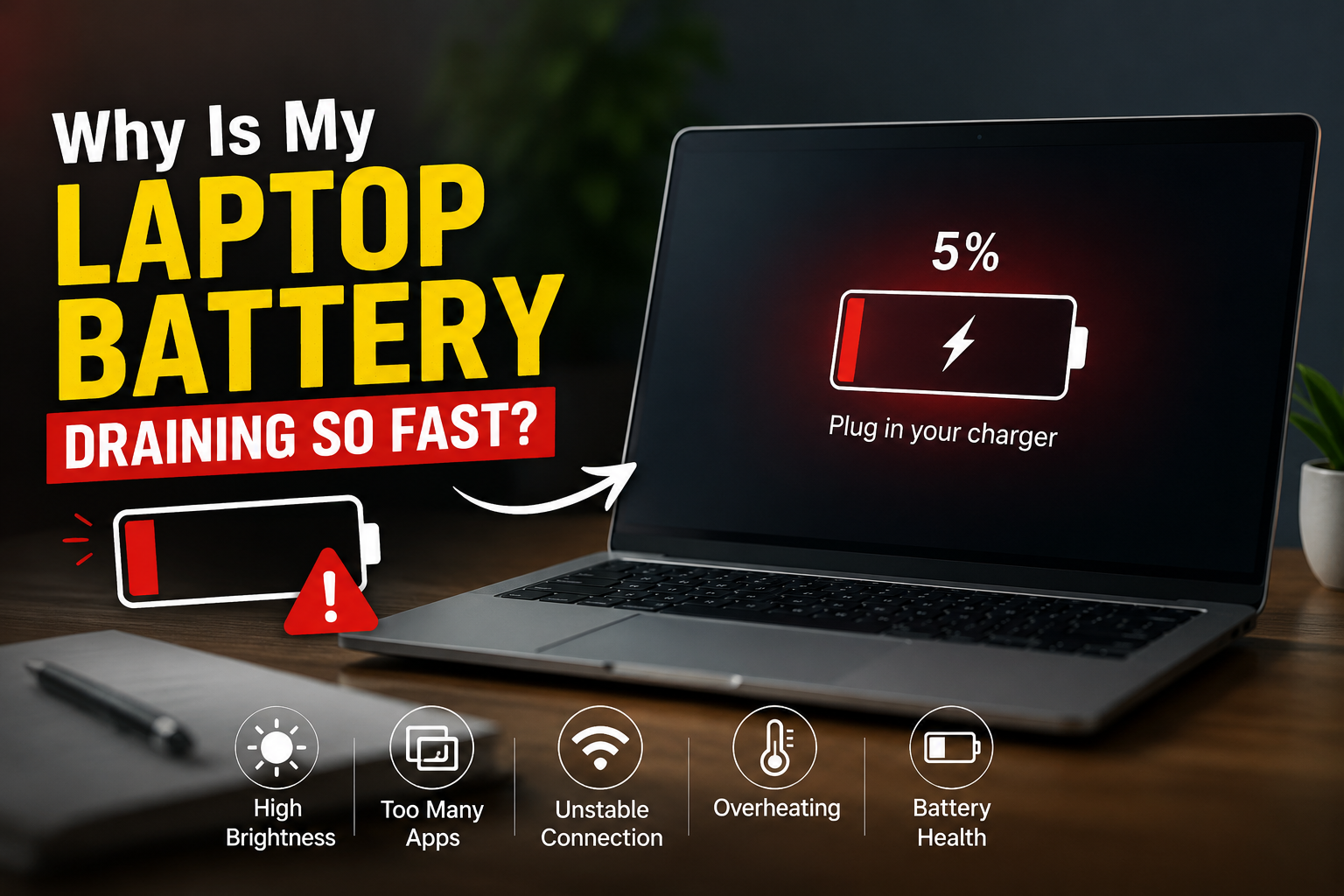
Few things are as frustrating as pulling your laptop off the charger, opening a few browser tabs, and watching your percentage plummet within minutes. If you find yourself asking, "Why is my laptop battery draining so fast?", you are far from alone. Rapid power loss is one of the most common issues faced by both Windows and Mac users.
While every laptop battery naturally deteriorates over time, sudden or severe battery drain is usually caused by a combination of software misconfigurations, resource-heavy processes, elevated display settings, or physical battery wear. In this practical guide, we will break down the primary reasons your laptop battery discharges so quickly and provide step-by-step solutions to restore your machine's portable runtime.
High Resource Usage and Resource-Intensive Applications
One of the most frequent culprits when your laptop battery is draining so fast is heavy software resource consumption. Even if you are only performing light tasks like writing a document, hidden background applications can put a heavy load on your Processor (CPU) and Graphics Card (GPU).
Identifying Resource-Hogging Background Processes
Background programs, updater services, and cloud sync tools frequently consume power without active user interaction. To see what is running:
- On Windows: Press Ctrl + Shift + Esc to open Task Manager. Click on the Power Usage or CPU column header to sort applications by current energy consumption.
- On macOS: Open Activity Monitor (via Spotlight search) and navigate to the Energy tab to identify apps causing high impact.
Common culprits include background game launchers, file sync agents (like OneDrive or Dropbox), and web browsers with dozens of active tabs running JavaScript heavy scripts.
Demanding Applications vs. Basic Tasks
Tasks like video rendering, 3D gaming, photo editing, and video conferencing software (e.g., Zoom or Teams) require high processing power. When running these software programs, your hardware draws significantly more wattage from the battery, cutting standard 8-hour battery life down to 1.5 to 2 hours.
Incorrect Display and System Power Settings
Your display panel is often the single largest power consumer in your laptop. Leaving system settings configured for maximum performance rather than efficiency accelerates battery depletion rapidly.
Screen Brightness and Refresh Rate Impact
Running your screen at maximum brightness can drain up to 30% to 50% more power than using it at 50% capacity. Additionally, modern high-end laptops feature high-refresh-rate displays (120Hz or 144Hz). While high refresh rates make motion smoother, they require your GPU to output twice as many frames per second, draining power far faster than standard 60Hz settings.
Misconfigured Power Plans and Sleep Modes
Operating systems offer customizable power plans. If your laptop is set to "Best Performance" mode, CPU power limits are lifted, preventing the processor from entering low-power idle states. Adjusting your power plan to "Balanced" or "Best Energy Efficiency" (Windows) or enabling "Low Power Mode" (macOS) allows the system to throttle clock speeds down when high power isn't needed.
Hardware Degradation and Aging Battery Health
If you have addressed software settings and your laptop battery keeps draining fast, physical hardware wear may be the root cause. All modern laptops use Lithium-Ion (Li-ion) or Lithium-Polymer (Li-Po) batteries, which inevitably degrade with age and use.
Understanding Lithium-Ion Battery Wear Cycles
A charge cycle occurs when you use 100% of your battery's capacity. Most laptop batteries are rated for approximately 300 to 500 full charge cycles—roughly 2 to 3 years of daily use. Beyond this point, chemical degradation reduces the battery's maximum design capacity, meaning a charge displaying "100%" may actually hold only a fraction of its original factory charge.
How to Check Your Laptop Battery Health Report
You can check your battery's actual physical health status without installing third-party tools:
- Windows: Open Command Prompt as Administrator, type
powercfg /batteryreport, and press Enter. Open the generated HTML file to compare Design Capacity vs. Full Charge Capacity. - macOS: Hold the Option key, click the Apple menu logo in the top left corner, select System Information, and click on Power to check cycle count and battery condition status.
Peripherals, Unnecessary Connectivity, and Drivers
Connected external hardware and active wireless radios constantly draw electricity from your laptop motherboard, contributing to premature discharge.
Connected Accessories and External Devices
External hard drives, RGB mechanical keyboards, gaming mice, and bus-powered USB hubs pull power directly from your laptop's battery. Even illuminated keyboard backlighting on the laptop itself draws noticeable energy over the course of a workday.
Bluetooth, Wi-Fi, and Outdated System Drivers
When Bluetooth and Wi-Fi remain active in areas with weak signals, your laptop increases radio transmitter power to maintain a stable connection. Furthermore, corrupted or outdated chipset and ACPI battery management drivers can cause false power readings or prevent hardware from entering power-saving sleep modes.
Overheating and Poor Thermal Management
Heat is the silent killer of battery efficiency and longevity. When internal temperatures rise, your laptop must compensate by running its cooling fans at maximum RPM, consuming substantial wattage in the process.
How Heat Accelerates Battery Discharge
Excessive thermal output alters internal resistance inside lithium-ion cell chemistry, causing energy to dissipate as waste heat rather than usable electricity. Operating a hot laptop accelerates both real-time drain and permanent capacity degradation.
Cleaning Vents and Thermal Maintenance
Dust accumulation inside intake vents and fan fins acts as insulation, trapping heat inside the chassis. Using your laptop on soft surfaces like beds, couches, or blankets blocks airflow entirely. Using a hard flat surface or a laptop cooling stand prevents air restriction and keeps thermal levels lower.
Malware, Adware, and Startup Bloatware
Unwanted background activity and malicious code can force your laptop hardware to run at continuous high output without your knowledge, destroying your battery life.
Cryptojackers and Unwanted Applications
Certain types of malware, known as cryptojackers or coin-miners, quietly run in the background to mine cryptocurrency using your CPU or GPU resources. This puts your hardware under a 100% constant workload, resulting in loud fan noise, rapid battery loss, and system lag.
Managing Startup Programs
Over time, installing new software adds dozens of helper applications to your boot menu. Disabling non-essential startup apps in Windows Task Manager (Startup Apps tab) or macOS System Settings (Login Items) prevents unnecessary programs from booting up alongside your operating system.
Frequently Asked Questions
Why is my laptop battery draining so fast all of a sudden?
A sudden battery drain is usually caused by a recent OS update, background software update, a rogue process consuming high CPU resources, high display brightness, or malware. Checking Task Manager or Activity Monitor will quickly reveal if a specific application is causing the spike.
Does keeping a laptop plugged in ruin the battery?
Modern laptops use smart charging circuits to stop drawing power once 100% is reached. However, keeping a battery constantly at 100% capacity in high thermal conditions can accelerate long-term chemical degradation. Many manufacturers recommend limiting maximum charge to 80% via built-in battery management software.
How can I check my laptop's battery health?
On Windows, open Command Prompt and run 'powercfg /batteryreport' to view a detailed breakdown of original capacity versus full charge capacity. On a Mac, navigate to System Settings > Battery > Battery Health, or check System Information under the Power section.
Why does my laptop battery drain fast even in sleep mode?
Modern Windows laptops often use 'Modern Standby' (S0 state), which allows the laptop to remain connected to Wi-Fi and download updates while asleep. Switching your power settings or closing battery-heavy background applications before closing the lid helps prevent sleep drain.
Will replacing the battery fix fast battery drain?
If your battery report shows that your full charge capacity is below 50–60% of its original design capacity, replacing the internal battery will fully restore original battery life runtime. However, if software or thermal issues are the cause, a hardware replacement alone won't completely solve high usage drain.
Does Google Chrome really drain laptop battery faster than other browsers?
Yes, web browsers like Google Chrome can be heavy on system memory and CPU power due to per-tab process isolation and resource-heavy extensions. Enabling Chrome's built-in 'Energy Saver' mode or using optimized native browsers like Safari or Microsoft Edge can improve battery runtime.
Conclusion
If your laptop battery is draining so fast, the issue is usually a combination of active software settings, system brightness, background processes, and natural battery wear. By monitoring resource usage in Task Manager or Activity Monitor, lowering screen refresh rates, optimizing power plans, and managing thermal performance, you can instantly improve your laptop's operational battery life.
If software adjustments fail to yield results, run a system battery health report. If your full charge capacity is significantly lower than its original design specification, replacing the physical battery is the most effective long-term solution to get your laptop running like new again.
Related Reading
- generate a battery report in Windows 11 — How to create and interpret a Windows battery report
- laptop overheating solutions — How to fix laptop thermal issues and clean internal cooling fans
- macOS battery optimization — Guide to extending MacBook battery life and managing energy settings
- managing task manager apps — How to disable startup applications and high-usage background processes