Guide · Aug 08, 2026
Why Is My Wi-Fi So Slow? 7 Common Causes and How to Fix Them
Is your wireless internet lagging? Discover the primary causes behind slow Wi-Fi performance and learn practical step-by-step technical solutions to boost your home network speed.
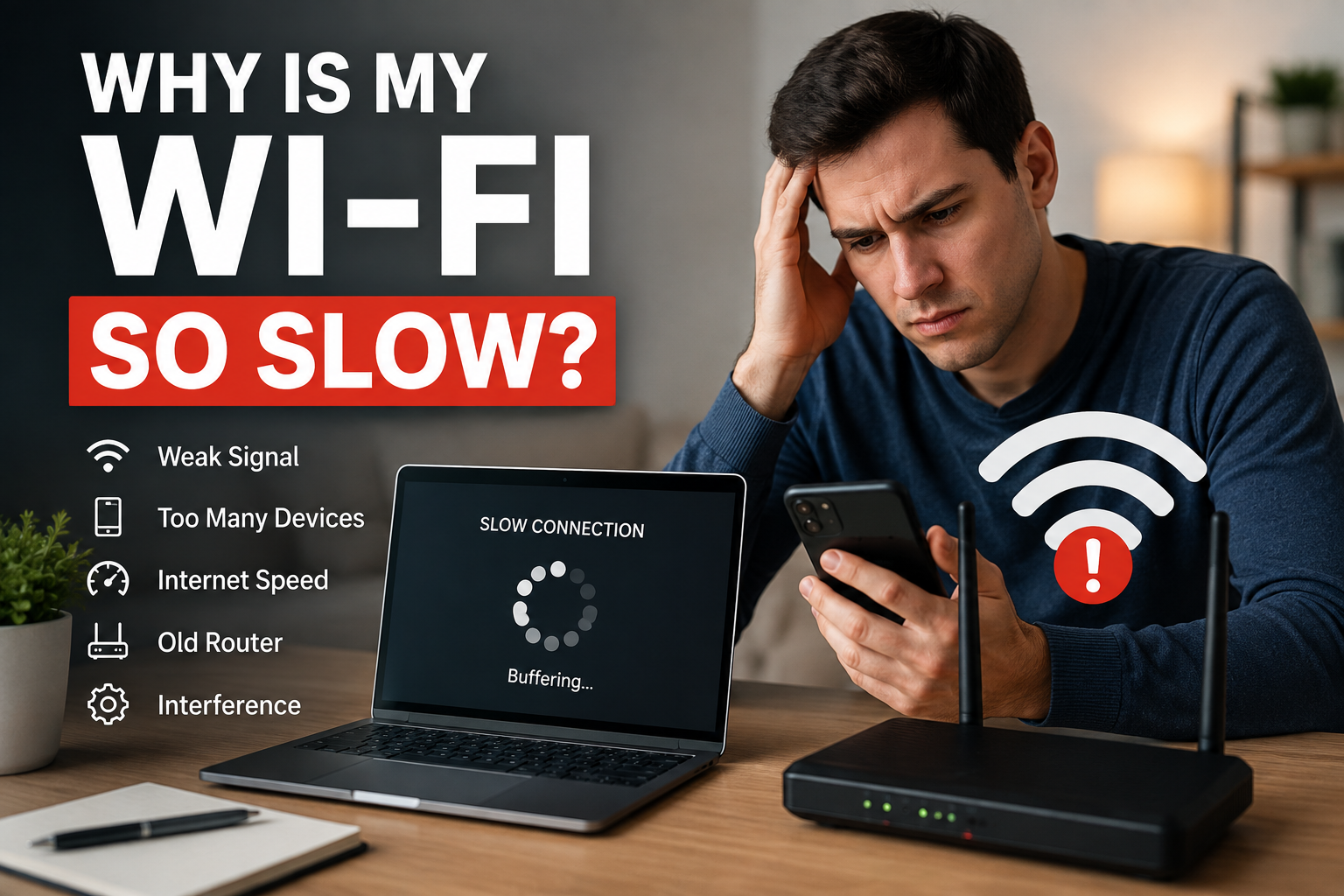
Few things are as frustrating as watching a loading wheel spin continuously while you try to stream a video, attend a video call, or load a simple web page. If you constantly find yourself asking, "why is my Wi-Fi so slow?", you are not alone. Wireless network degradation is a widespread issue that affects millions of households daily.
While it is tempting to immediately blame your Internet Service Provider (ISP), sluggish wireless performance is often caused by a complex combination of local factors. These range from physical range limitations and physical signal attenuation to network congestion, radio frequency interference, and outdated hardware specifications. In this comprehensive guide, we will analyze the primary root causes of slow Wi-Fi and provide actionable, step-by-step troubleshooting methods to restore your wireless connection to peak performance.
Poor Router Placement: Why Is My Wi-Fi So Slow in Certain Rooms?
Positioning is one of the most critical, yet frequently overlooked, factors determining wireless performance. High-frequency radio signals degrade rapidly as they travel through physical obstructions and across vast distances.
How Distance and Physical Barriers Block Wi-Fi Signals
Wi-Fi operates using radio waves that suffer from attenuation—the reduction of signal strength—when passing through solid objects. Dense construction materials like concrete, brick, plaster, metal studs, and tile severely absorb or reflect Wi-Fi signals. Even large water filled objects, such as fish tanks, can act as major signal barriers. If your router is tucked away in a basement, a closet, or behind a TV, your signal strength drops significantly before reaching your primary living spaces.
Ideal Locations for Your Wireless Router
To maximize coverage and eliminate dead zones, follow these geometric positioning best practices:
- Centralize placement: Place your router near the center of your home so signals radiate evenly to all areas.
- Elevate the unit: Mount or place your router on a high table, shelf, or wall mount. Radio signals spread outward and downward.
- Maintain line-of-sight: Keep the router in an open room away from large metal appliances, mirrors, and thick interior walls.
Network Congestion and Too Many Connected Devices
Modern homes host dozens of internet-connected gadgets, from smartphones and laptops to smart TVs, doorbells, and IoT appliances. When multiple devices request data simultaneously, your router's bandwidth becomes saturated.
Bandwidth-Hogging Applications and Background Downloads
Not all internet traffic is created equal. High-definition 4K streaming, cloud backups, massive game updates, and peer-to-peer file sharing consume massive amounts of throughput. If one device is performing a heavy download in the background, it can reduce available bandwidth for every other user on the network, leading to lag and high latency.
Managing Device Priority with Quality of Service (QoS)
To prevent bandwidth hijacking, most modern routers feature Quality of Service (QoS) settings. QoS allows network administrators to prioritize specific devices or traffic types (such as Zoom calls or online gaming) over lower-priority background tasks (like automated software updates). Configuring QoS ensures critical tasks receive guaranteed bandwidth during peak usage hours.
Signal Interference from Household Electronics and Neighboring Networks
Wireless communication relies on specific radio frequency bands. When multiple devices transmit on the same frequencies, signal noise and packet loss occur, degrading overall network performance.
The 2.4 GHz vs. 5 GHz Band Interference Battle
Wi-Fi networks primarily operate on two radio frequency bands: 2.4 GHz and 5 GHz. The 2.4 GHz band offers longer range but is extremely crowded. Household items like microwave ovens, Bluetooth devices, baby monitors, and cordless phones operate on this same frequency, creating heavy radio frequency (RF) noise. Switching latency-sensitive devices to the less-congested 5 GHz band provides significantly faster speeds, albeit over shorter distances.
Choosing the Right Wi-Fi Channel
In dense residential areas or apartment complexes, neighboring Wi-Fi networks often overlap on identical radio channels. On the 2.4 GHz spectrum, only channels 1, 6, and 11 do not overlap. Using a Wi-Fi analyzer tool allows you to identify which channels are least crowded in your area and manually assign your router to an unassigned channel.
Outdated Router Hardware or Firmware
Hardware limitations are a frequent root cause when evaluating why Wi-Fi connection quality plummets. Legacy hardware simply cannot handle modern broadband speeds or heavy multi-device traffic.
The Impact of Obsolete Wi-Fi Standards
Networking technology evolves rapidly through defined standards. Older routers operating on legacy protocols (like Wi-Fi 4 / 802.11n) lack modern performance enhancements like MU-MIMO (Multi-User, Multiple-Input, Multiple-Output) and beamforming. Upgrading to a Wi-Fi 6 (802.11ax) or Wi-Fi 6E device dramatically improves efficient multi-device handling and overall maximum speed limits.
How to Update Your Router's Firmware
Router manufacturers regularly release firmware updates to patch security vulnerabilities, fix memory leaks, and optimize network processing. Running outdated firmware can cause performance throttles and instability. Access your router's administrative portal or companion mobile app to enable automatic updates or manually install the latest software releases.
ISP Throttling: Why Is My Wi-Fi So Slow Despite Paying for High-Speed Internet?
Sometimes the issue lies outside your home entirely. The connection delivered by your Internet Service Provider might be degraded before it even hits your router.
Testing Your Speed: Modem vs. Router Speed Tests
To isolate whether the issue is wireless or ISP-related, connect a computer directly to your modem or router gateway using an Ethernet cable. Run an online speed test. If your wired speed matches your subscribed plan but your wireless speed is significantly lower, the issue is internal to your local Wi-Fi setup. If the wired speed is also slow, the issue originates with your ISP or cable infrastructure.
Recognizing ISP Data Caps and Throttling
Some service providers implement data caps or intentionally throttle bandwidth during peak utilization hours (usually between 7:00 PM and 11:00 PM) to prevent local node overload. Review your service tier agreement to ensure you haven't exceeded monthly high-speed data allocations or that your neighborhood node isn't experiencing localized outages.
Device-Specific Issues and Background Malware
If only one specific phone, tablet, or laptop experiences sluggish speeds while other devices run fast, the problem lies within the individual client device.
Outdated Network Drivers and Operating System Settings
Corrupted or obsolete network adapter drivers can cause unstable wireless connections and speed caps. Ensure your device's network drivers and operating system are fully updated. Additionally, power-saving settings on laptops can sometimes reduce power to the internal Wi-Fi card, limiting network throughput.
Background Malware and Unauthorized Network Users
Malware, adware, and hidden background processes can hijack network bandwidth to send data to external servers or mine cryptocurrency. Ensure your devices are clean by running antivirus scans. Furthermore, check your router's client list to ensure unauthorized neighbors aren't leeching off your unsecured network without your permission.
Summary Checklist: Resolving Why Your Wi-Fi Is So Slow
To quickly diagnose and fix network slowness, execute the following systematic troubleshooting procedure:
The Power Cycle Method (The 30-Second Rule)
Restarting your networking gear is often the fastest fix. Unplug both your modem and router from power, wait full 30 seconds to allow residual capacitor charge to dissipate, then plug them back in. This clears temporary RAM caches, resets routing tables, and forces the router to select the least congested wireless channel upon reboot.
When to Consider Mesh Networks or Hardware Upgrades
If your home is larger than 2,000 square feet or features thick architectural barriers, a single router may be physically incapable of providing complete coverage. Installing a mesh Wi-Fi system utilizes multiple nodes linked together to create a seamless, high-speed wireless fabric across your entire residence, effectively solving structural signal degradation.
Frequently Asked Questions
Why is my Wi-Fi so slow on only one device?
If only one device is slow, the issue is localized to that specific hardware. Common causes include outdated network adapter drivers, corrupt OS settings, background software downloads, physical distance from the router, or an older Wi-Fi chip inside the device that cannot support modern high-speed protocols.
Can a simple router restart really fix slow Wi-Fi?
Yes. Restarting your router clears its internal memory (RAM), halts stuck background tasks, and forces the device to automatically select the clearest frequency channel available, resolving temporary software glitches and performance bottlenecks.
Is 5 GHz Wi-Fi faster than 2.4 GHz Wi-Fi?
Yes, 5 GHz provides significantly faster data speeds and lower latency because it has wider channels and experiences less radio frequency interference. However, 2.4 GHz offers better coverage range and penetrates thick walls more effectively.
How do I know if my ISP is throttling my internet speed?
Run an internet speed test via an Ethernet cable connection. Compare the results with the speeds promised in your internet service plan. If your speeds drop significantly only during specific hours (like evening peak times) or when using specific applications, your ISP may be throttling your traffic.
Does the age of my router affect my connection speed?
Absolutely. Routers older than 4–5 years often rely on obsolete Wi-Fi standards (like Wi-Fi 4 or early Wi-Fi 5) that cannot keep up with modern gigabit broadband plans or process traffic from dozens of smart devices simultaneously.
Can neighboring Wi-Fi networks slow down my connection?
Yes. If your neighbors' routers are broadcasting on the same radio channels as yours, it creates channel overlap and co-channel interference, leading to packet drops, higher latency, and reduced overall speed.
Conclusion
Troubleshooting slow Wi-Fi requires a process of elimination. By systematically addressing physical router placement, switching to the 5 GHz band, eliminating channel congestion, and keeping your firmware updated, you can resolve the majority of local wireless bottlenecks. If performance remains sluggish after optimizing your local setup, perform a wired speed test to determine whether it is time to upgrade your router hardware or contact your Internet Service Provider to address external line issues.
Related Reading
- difference between Wi-Fi 5 and Wi-Fi 6 — Wi-Fi standards and modern networking tech
- how to perform an accurate speed test — Internet speed testing and network diagnostics
- best router placement strategies — Home networking setup and physical optimization
- setting up guest Wi-Fi networks — Network security and bandwidth management